


Invitation card Maker, Design
4.9397.00 Reviews
App Specs
- Version
- 3.3
- Updated On
- License
- Free
- Downloads
- 5,000,000+
- Developer
- Splendid App Maker
- Categories
- Events
- Platform
- Android
Screenshots
 Analysis by AppCompare
When I need an invitation that feels more personal than a plain message but don’t want to start a design from scratch, I look for a tool that gets me from idea to something shareable without turning the task into a project. Invitation Card Maker, Design is aimed squarely at that job: it is an events app for making digital invitations and greeting cards, especially for birthdays and weddings. I find it most useful when I want a finished-looking design quickly, with enough room to make it feel like it belongs to my event.
Where the app fits today
The app is free to install and is developed by Splendid App Maker. Its current version is 3.3, and it has been available since January 13, 2020. An average rating of 4.9 from around 53,000 ratings and more than 5 million installs suggest it has reached a sizable audience, though popularity alone doesn’t tell me whether it suits every invitation. It is rated for Everyone, and optional in-app purchases range from $2.49 to $12.99 per item.
That combination makes the app easy to try before deciding whether its design approach works for me. I would treat the free experience as a chance to test the workflow and see whether the available choices fit my event, rather than assuming every decorative element or design option is included. The app supports devices running Android 7.0 or later, so it is worth checking compatibility before planning an invitation around it.
First Impressions and Ease of Use
When I first opened Invitation Card Maker, Design, the sleek and straightforward interface caught my eye. The app is user-friendly, making it easy for anyone, even those who aren’t tech-savvy, to dive right in. What’s really cool is that you don’t need any prior design experience. The app guides you through the process, almost like having a personal designer at your fingertips.
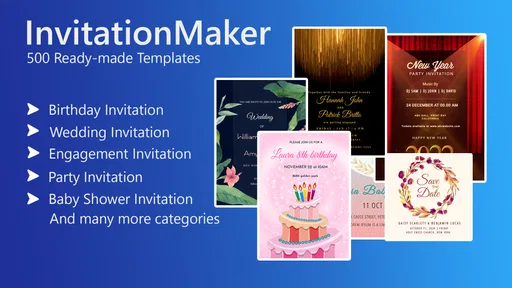
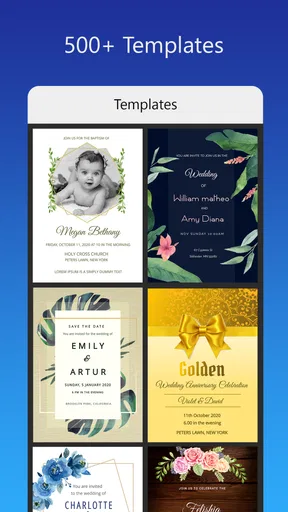
Getting started is simple. You can choose from a variety of templates categorized by event type. Whether you're planning a formal wedding or a child’s birthday party, there’s something for everyone. The app’s drag-and-drop feature makes customizing these templates a breeze. Just pick, drag, and drop your favorite elements to create a masterpiece.
Making a template feel like your event
For me, a template is a useful starting point, not a finished invitation. I get a better result when I decide on the essential details first: the event name, date, location, and the tone I want to convey. Then I choose a design that leaves enough clear space for those details. A crowded background can look attractive in the editor but make the practical information harder to read on a phone.
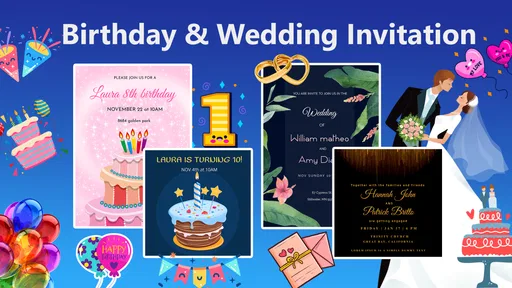
This is especially relevant for a child’s birthday, where playful decorations can quickly compete with the time and place. I would keep the main wording short, use a clear contrast between text and background, and check the design at a small size before sharing. For a wedding, I would take the opposite approach: fewer decorative elements and more breathing room can make the invitation feel calmer without needing elaborate design skills.
Worth Reading Before You Choose

Baby Panda World Brings Quick Play to Modern Phones, but Its Game Library Feels Busy

ESPN’s Live Game View Makes Following Close Games Easier

QuizzLand Review: A Good Fit for Short Trivia Breaks, Not Every Player

Basketball Stars: Multiplayer Is Fast, but Can It Recover When Matches Go Wrong?

WEBTOON Turns Phone Updates Into a Better Reading Routine

Link to Windows Runs on Shared Habits, Not Social Feeds
Customization Galore
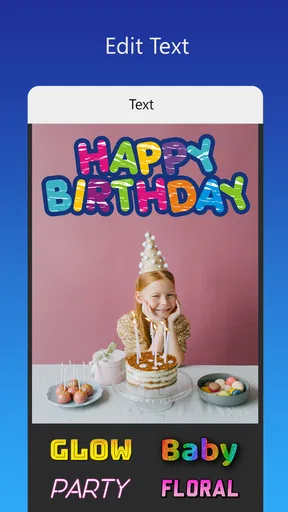
One of the standout features is the level of customization. You can tweak almost everything—from fonts and colors to images and backgrounds. This flexibility means you can tailor each invitation to suit the vibe of your event perfectly. For someone like me who loves to add a personal touch to everything, this was a major plus.
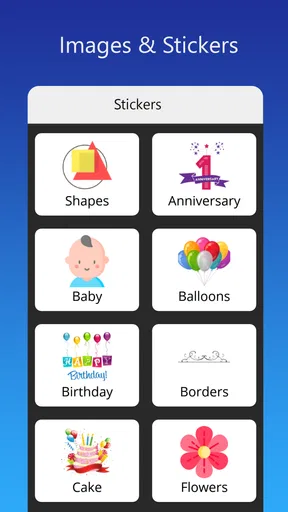
The app also offers a decent library of stickers and embellishments. These little add-ons can make your invitation pop. Plus, you can upload your own images, which is perfect for adding that personal touch or showcasing a memorable photo.
My practical tip is to choose the personal image before spending time on small details. A family photo or a picture tied to the occasion can determine which colors and layout will work, so building the design around it may save repeated edits. I would also keep a clean version before trying extra stickers: comparing the two helps me decide whether an embellishment genuinely improves the card or simply makes it busier.
There is a trade-off here. More control is helpful when I have a clear idea, but it can slow me down if I keep changing fonts, colors, and decorations without a plan. I would set a simple limit for myself—one main image, a small color palette, and only a few decorative touches—then focus on legibility. That approach is particularly useful when the invitation will be viewed on different phones, where fine details may not stand out as they do on a larger screen.
Choosing the right workflow for a real event
Imagine I’m organizing a birthday gathering after work and need to tell relatives the details that evening. I can pick a birthday template, add the essential information, and use a personal image if it suits the design. Before sending, I would check the date and address carefully, then view the finished card as a recipient might see it. That small proofread matters: decorative invitations still have to communicate practical details accurately.
For a wedding, I would allow more time and make a separate pass for wording and visual balance. A digital invitation can be convenient for quick distribution, while a printed copy may suit guests who prefer paper or for whom a phone message is easy to miss. The option to save and print gives me room to choose either route, but I would inspect a saved design before printing so that text and images look appropriate on the page.
Sharing and Saving Your Creations
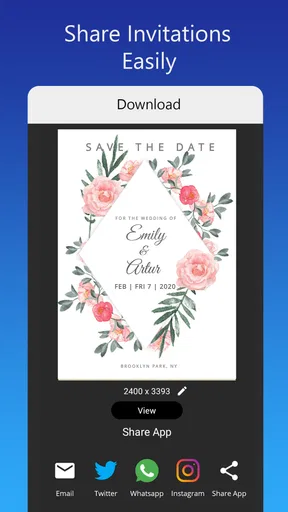
Once your masterpiece is ready, sharing it is as easy as pie. The app lets you send invitations directly via email or social media. If you prefer the old-school method, you can save the design and print it out. This dual option is fantastic because it caters to both digital enthusiasts and traditionalists.
Another neat feature is the ability to save your projects. This means you can work on multiple invitations at once or revisit a design later if you need to make changes. I found this particularly handy when I had to make last-minute tweaks before sending out my invites.
Saving a project is also useful when an event’s details are still changing. I can return to the design once a venue or schedule is settled instead of rebuilding it, and keeping separate versions for different groups can help avoid sending the wrong wording to the wrong people. I would still check the final saved image after edits; the latest version is the one that should be shared or printed, not an earlier draft.
Compared with making an invitation in a general-purpose graphics editor, this app’s event-oriented templates can reduce the amount of layout work. A blank canvas gives a designer more freedom, but also asks for more decisions and time. A text message is quicker still, yet it lacks the visual warmth of a card. I see this app as a middle ground: more personal than a plain message, less demanding than building a design from scratch.
Performance and Reliability
During my time with the app, I didn’t encounter any glitches or crashes, which is a huge relief. There's nothing worse than losing all your hard work due to a technical hiccup. The app runs smoothly, even on older devices, which is impressive.
It's also worth mentioning that the app doesn’t bombard you with ads, which is a rarity these days. You can focus on creating your invitation without constant interruptions, making the whole experience much more enjoyable.
When I use a design app for an event, reliability is not just about whether it opens; it is also about having a sensible plan if I need to revise something close to the deadline. The save-and-return workflow helps, but I would avoid leaving the only copy of an important invitation until the last minute. I recommend finishing the wording first, saving a draft, and allowing time to review the final image before sending it to a group.
Limits, audience, and the choice to pay
I would recommend this app to someone who wants a visually polished invitation without learning a full design program, especially for an informal celebration or a wedding where a personal touch matters. It is also a practical choice for anyone who expects to share digitally but wants the option of printing. Someone who enjoys adjusting a template rather than starting with a blank page is likely to get the most from it.
It is less suitable for a user who needs precise professional print-production controls or a highly unusual layout. In that case, a dedicated design tool may offer a better fit, even if it takes longer to learn. Likewise, if the event only needs a quick note with time and place, a text or email may be simpler than making a card. I would not pay for an item until I had tried the free workflow and knew that the particular option was worth it for my project; the in-app purchases are optional, not a reason to assume every design choice requires payment.
The app has been around long enough to have reached version 3.3, which gives existing users a clear current version to check when deciding whether to install or update. I can rely on that version information, but I wouldn’t infer a particular new feature or promise of future changes from a version number alone. What I would watch for as a user is whether the available templates and editing choices continue to fit the occasions I actually plan, and whether the saving and sharing steps remain straightforward.
Final Thoughts
Overall, Invitation Card Maker, Design is a fantastic tool for anyone looking to create beautiful and personalized invitations without breaking a sweat. Its user-friendly interface, extensive customization options, and seamless sharing capabilities make it a must-have app for event planning.
Whether you're a seasoned designer or a newbie, this app has something to offer. So why not give it a try for your next event? You might just find yourself enjoying the process as much as the party itself!
My recommendation is to approach it as a convenient card-making tool rather than a complete event-planning system. It can help me create and share the invitation, but I still need to keep track of guest responses and communicate any later changes through the channels I use with my guests. If I keep the design readable, confirm the details, and choose a template that suits the occasion, it can make that first step of inviting people feel more personal without making it unnecessarily complicated.
Pros
- User-friendly interface for easy navigation.
- Wide variety of templates available.
- Customization options are extensive.
- Quick sharing to social media platforms.
- Supports high-resolution downloads.
Cons
- Limited free features
- many are premium.
- Occasional ads can disrupt workflow.
- Requires internet for template access.
- Some designs feel outdated.
- No collaboration features included.
FAQs for Invitation card Maker, Design
What features does the Invitation Card Maker, Design app offer?
The Invitation Card Maker, Design app provides a wide array of features including customizable templates, a vast library of fonts and graphics, and the ability to add personalized text and images. Users can create invitations for various occasions like weddings, birthdays, and corporate events. The app also supports sharing directly via email or social media.
Is the Invitation Card Maker, Design app user-friendly for beginners?
Yes, the app is designed with an intuitive interface that makes it easy for beginners to navigate. It offers step-by-step guidance and pre-designed templates that users can modify with simple drag-and-drop functionality. Tutorials and tips are available within the app to help new users create professional-looking invitations effortlessly.
Are there any costs associated with using the Invitation Card Maker, Design app?
The app offers a free version with basic features, but there are in-app purchases for premium templates, additional graphics, and advanced editing tools. A subscription model is also available for users who want unlimited access to all features, which might be ideal for frequent users or professional designers.
Can I print the invitations created with the Invitation Card Maker, Design app?
Yes, invitations can be downloaded in high-resolution formats suitable for printing. The app allows users to export their designs as PDFs or image files, which can then be printed at home or through a professional printing service. This flexibility ensures that your invitations can meet both digital and physical distribution needs.
Is my data secure when using the Invitation Card Maker, Design app?
The app prioritizes user privacy and data security. It employs encryption to protect personal information and designs. Additionally, it offers options to save your work locally on your device or securely in the cloud, ensuring that your creative work is protected against loss or unauthorized access.


